Embeds
Images
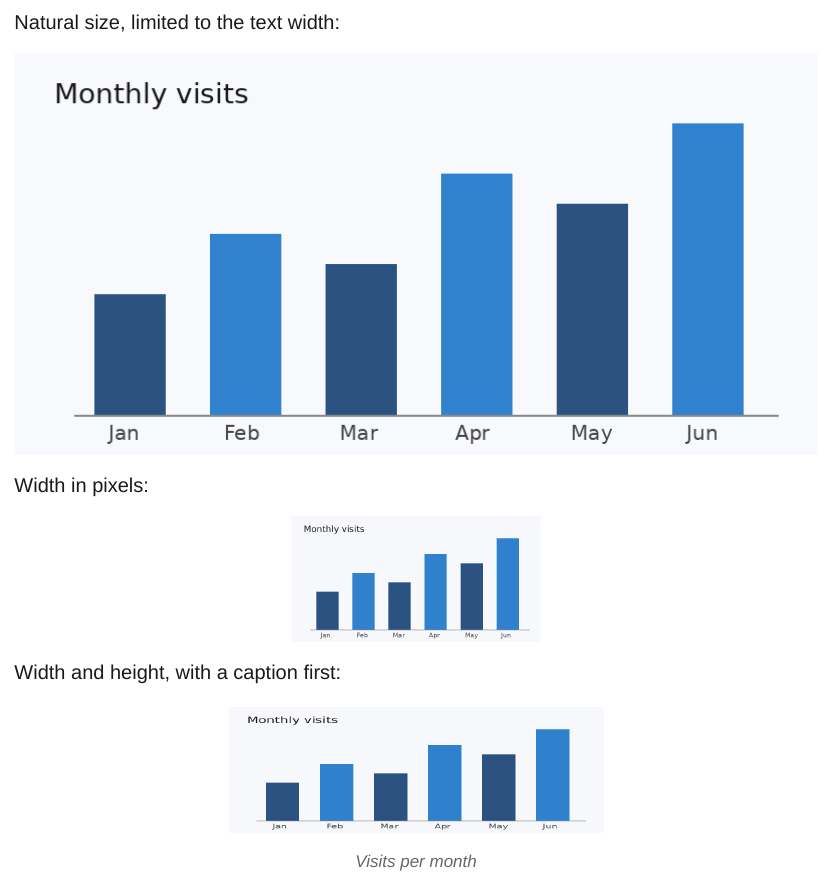
![[image.png]] embeds an image from anywhere in the vault. A number sets the width in pixels, WIDTHxHEIGHT both. A caption can come first.
Markdown
| Syntax | Result |
|---|---|
![[chart.png]] |
Natural size, at most the text width. |
![[chart.png\|300]] |
300 px wide. |
![[chart.png\|300x100]] |
300 by 100 px. |
![[chart.png\|Caption\|300]] |
A caption below the image, and a width. |
![[missing.png]] |
Shown as [Image: missing.png]. |
An image is at most as wide as the text and is never split across pages. PNG, JPG, GIF, WebP and SVG are supported.
SVG
SVG files are inlined into the HTML, so lines and text stay sharp at any zoom and the text can be searched. draw.io exports get extra handling, see draw.io.
PDF
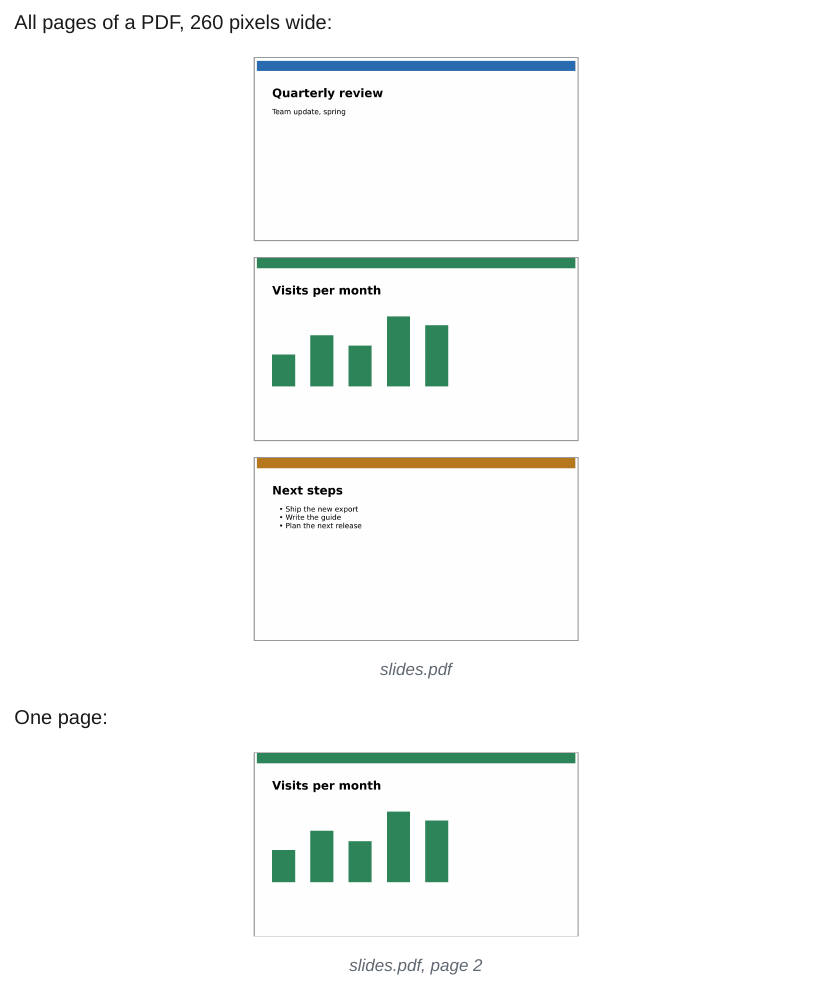
![[file.pdf]] draws the pages of a PDF file as images, one below the other, each with a thin border. The file name is the caption. A page is at most as wide as the text and at most 22 cm high.
Markdown
| Syntax | Result |
|---|---|
![[file.pdf]] |
All pages, up to pdf_embeds.max_pages. |
![[file.pdf#page=3]] |
Only page 3. |
![[file.pdf#page=2-4]] |
Pages 2 to 4. |
![[file.pdf#height=400]] |
Every page 400 px high. |
![[file.pdf\|300]] |
Every page 300 px wide. 300x200 sets both. |
| Option | Default | Effect |
|---|---|---|
-O pdf_embeds.max_pages=N |
10 |
Most pages drawn per embed. When pages are left out, a line such as "… 4 more pages in file.pdf" follows the last page. |
-O pdf_embeds.dpi=N |
150 |
Resolution of the page images. Higher values are sharper and make a larger PDF. |
-O pdf_embeds=link |
pages |
Keep PDF embeds as links, as before version 0.8. |
The pages are drawn with pypdfium2, which is installed with ope and needs no system package. WeasyPrint cannot place a page of another PDF as vector content, so the pages are PNG images: text in them cannot be selected or searched. A PDF that cannot be found or opened, for example because it is encrypted, becomes a link and the export prints a warning. Embeds inside code stay as written.
Templates can style figure.pdf-embed, the page images img.pdf-embed-page and the note p.pdf-embed-more.
Notes, headings and blocks
![[Note]] puts the content of another note in place, without its frontmatter. A heading or block reference embeds a part of it. The source note here is _notes/Meeting notes.md:
---
type: meeting
date: 2026-03-02
status: done
---
# Meeting notes

## Decisions

- Ship version 2 in April.
- Keep the old export for one more release.

## Open points

The budget for the new server is still open. ^budget

| Item   | Cost |
| ------ | ---- |
| Server | 2400 |
| Backup | 300  |

^costs
Markdown
| Syntax | Embeds |
|---|---|
![[Note]] |
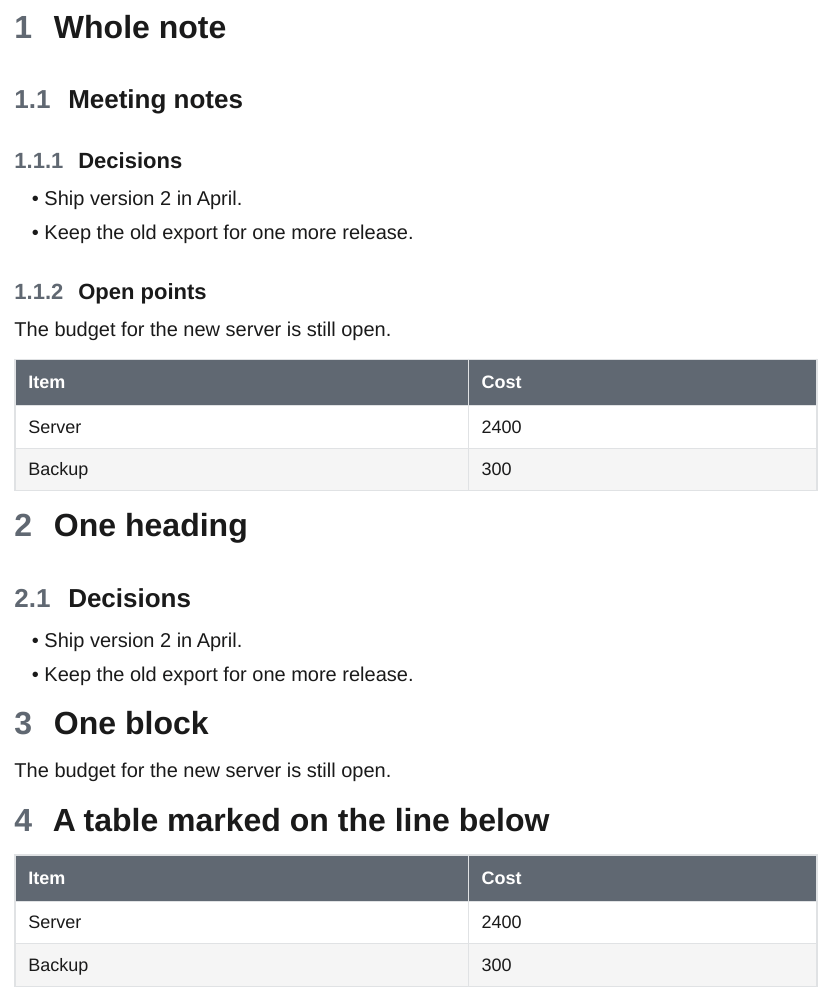
The whole note. |
![[Note#Heading]] |
The heading and its content, up to the next heading of the same or a higher level. |
![[Note#A#B]] |
Heading B inside section A. |
![[Note#^id]] |
The block marked ^id, see Block IDs. |
![[Note#^id-id]] |
A range, see Block Link Plus. |
Embedded content is processed like the note it comes from:
- Plugin syntax (Dataview, Meta Bind, ...) uses the frontmatter and folder of the source note.
- Images and wiki links resolve from the source note's folder.
- Embeds inside embedded content are expanded too, up to 10 levels. An embed that would include itself again is skipped.
- Headings are shifted so the topmost one sits one level below the heading the embed is under. Without a heading above it, the page title counts. Nested headings keep their relative levels.
- An embed alone on its line (it may be indented, or in a quote or callout) becomes block content. An embed inside other text is inserted inline, with its lines joined.
- A note, heading or block that cannot be found shows as italic text, such as Note#^id, and the export prints a warning.
The target is looked up in the whole vault. ![[Note]] picks the closest note of that name. A path such as ![[Folder/Note#^id]] is matched against the end of each note's path.